> For the complete documentation index, see [llms.txt](https://docs.speedix.io/llms.txt). Markdown versions of documentation pages are available by appending `.md` to page URLs; this page is available as [Markdown](https://docs.speedix.io/user-guide/create-your-company-and-operator.md).

# Create Your Company and Operator

#### 1. Create Your Company Account

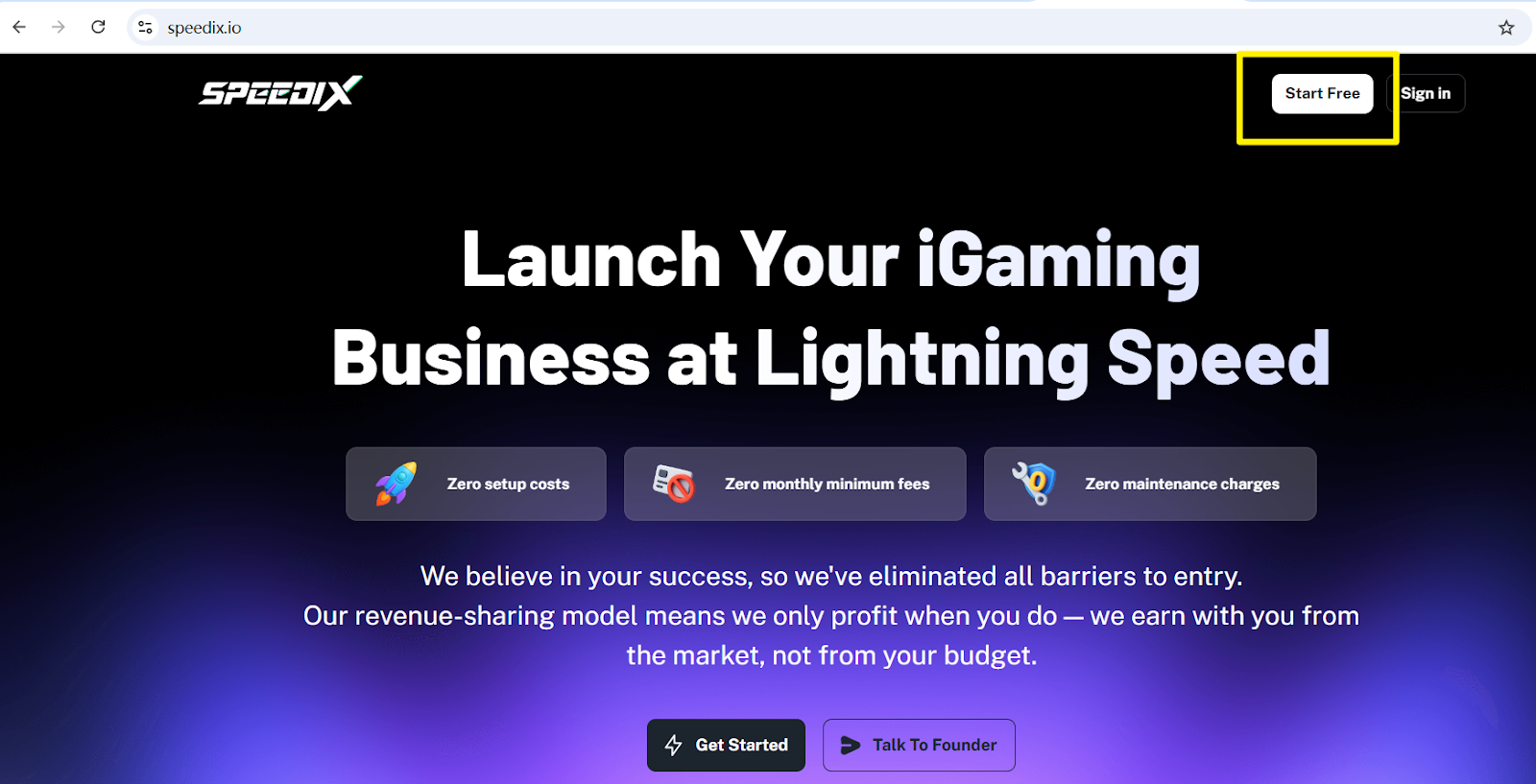
Visit <https://speedix.io/> and click **Start Free** in the top-right corner to create your **Company** account.

<figure><img src="https://1949175-files.gitbook.io/~/files/v0/b/gitbook-x-prod.appspot.com/o/spaces%2F6oFF3WfAuzvevpSXOx3m%2Fuploads%2FmmkDAq6TZkNqrmGeS17g%2Funknown.png?alt=media&amp;token=1f284269-d4c0-4f01-969d-9a44b9c3d311" alt=""><figcaption></figcaption></figure>

***

#### 2. Fill Out the Registration Form

On the registration page, complete the form with the required information:

| Field          | Description                                                                                                                                              |
| -------------- | -------------------------------------------------------------------------------------------------------------------------------------------------------- |
| **Sub Domain** | Only letters and numbers are allowed (no spaces). We recommend using your business name or another preferred name to make it part of your unique domain. |
| **Affiliate**  | Enter your business manager’s name (if applicable).                                                                                                      |

After submitting the form, check your email for a **verification code**, and enter it on the page to complete verification.

***

#### 3. Receive Your Back-Office Information

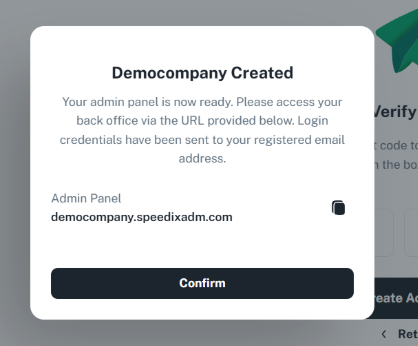
Once your account is verified, the system will automatically generate your **Company back-office URL** and send your login information via email.

<p align="center"><img src="https://1949175-files.gitbook.io/~/files/v0/b/gitbook-x-prod.appspot.com/o/spaces%2F6oFF3WfAuzvevpSXOx3m%2Fuploads%2FleWyA911xwqpDNQPlFDa%2Funknown.png?alt=media&amp;token=3f6ca127-9cf0-4d0b-a5b5-29ee2e91673b" alt=""></p>

***

#### 4. Log In and Create Your First Operator

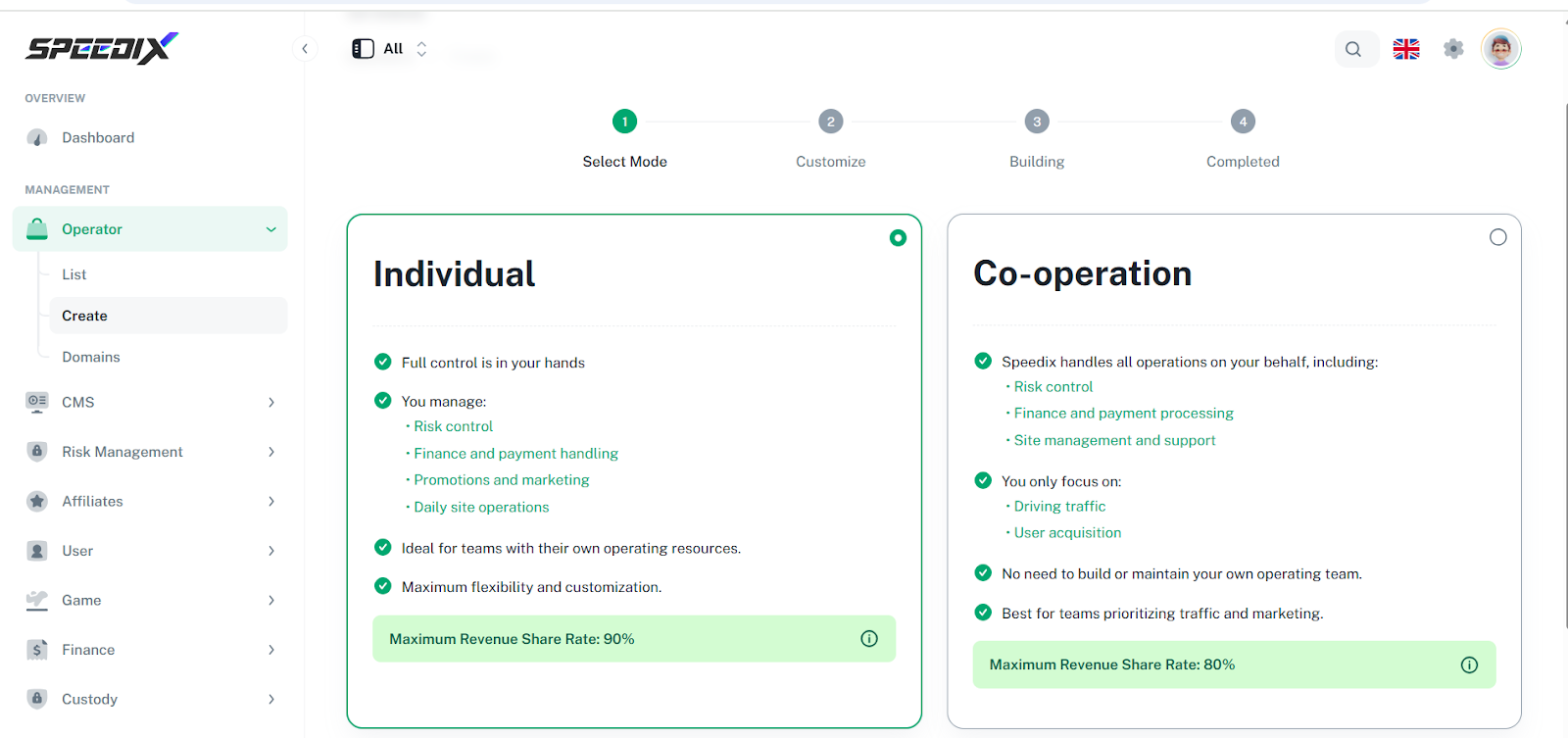
Copy the back-office URL from the email, open it in your browser, and log in using your registered email and password.\
Follow the on-screen instructions to create your first **Operator**.

You can create **multiple Operators** under one Company.\
Each Operator represents an independent website or application.

<table><thead><tr><th width="134.78515625">Option</th><th>Description</th></tr></thead><tbody><tr><td><strong>Individual</strong></td><td>Full control is in your hands — manage risk, finance, promotions, and all site operations independently. Ideal for teams that want complete autonomy and full operational freedom.</td></tr><tr><td><strong>Co-operation</strong></td><td>Let Speedix take care of everything on the operational side — from risk control to finance and daily management. You just focus on driving traffic; no need to build your own operating team.</td></tr></tbody></table>

<figure><img src="https://1949175-files.gitbook.io/~/files/v0/b/gitbook-x-prod.appspot.com/o/spaces%2F6oFF3WfAuzvevpSXOx3m%2Fuploads%2FqX7E4CLOardeNhtmXNEi%2Funknown.png?alt=media&amp;token=d200d1d9-31fb-48d5-b474-b6db52ceb593" alt=""><figcaption></figcaption></figure>

***

#### 5. Choose a Template

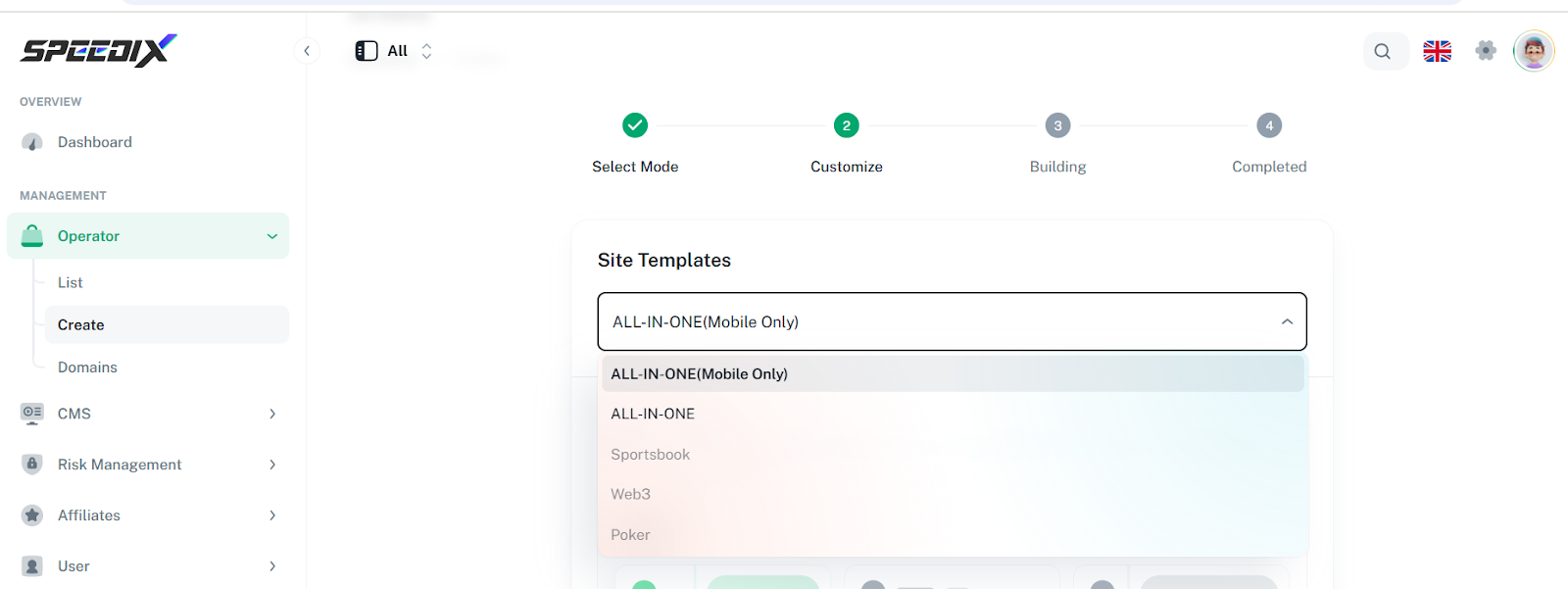
Speedix currently supports **two templates**:

**🟢 All-IN-ONE (Mobile Only)**

* Optimized exclusively for **mobile devices**.
* Lightweight and fast loading.
* Ideal for **mobile-dominant markets** such as *India, Brazil, and Africa*.

**🔵 All-IN-ONE**

* Suitable for **global or country-specific brands**.
* Supports both **cryptocurrency and fiat** payment methods.
* Fully **responsive** across PC, tablet, and mobile devices.

<figure><img src="https://1949175-files.gitbook.io/~/files/v0/b/gitbook-x-prod.appspot.com/o/spaces%2F6oFF3WfAuzvevpSXOx3m%2Fuploads%2F8pAM8Q7BrYJXqEn43yLw%2Funknown.png?alt=media&amp;token=d749360b-ac96-4d43-b521-219581a8f46f" alt=""><figcaption></figcaption></figure>

***

#### 6. Configure Operator Details

Fill in the required information to complete your Operator setup.

**Report Currency** determines which currency will be used to display all financial data in reports.\
For example:\
If your business supports USD, EUR, TRY, USDT, and ETH, and you select EUR, all transaction data will be automatically converted and displayed in EUR based on the exchange rate at the time of each transaction.

***

#### 7. Complete Registration

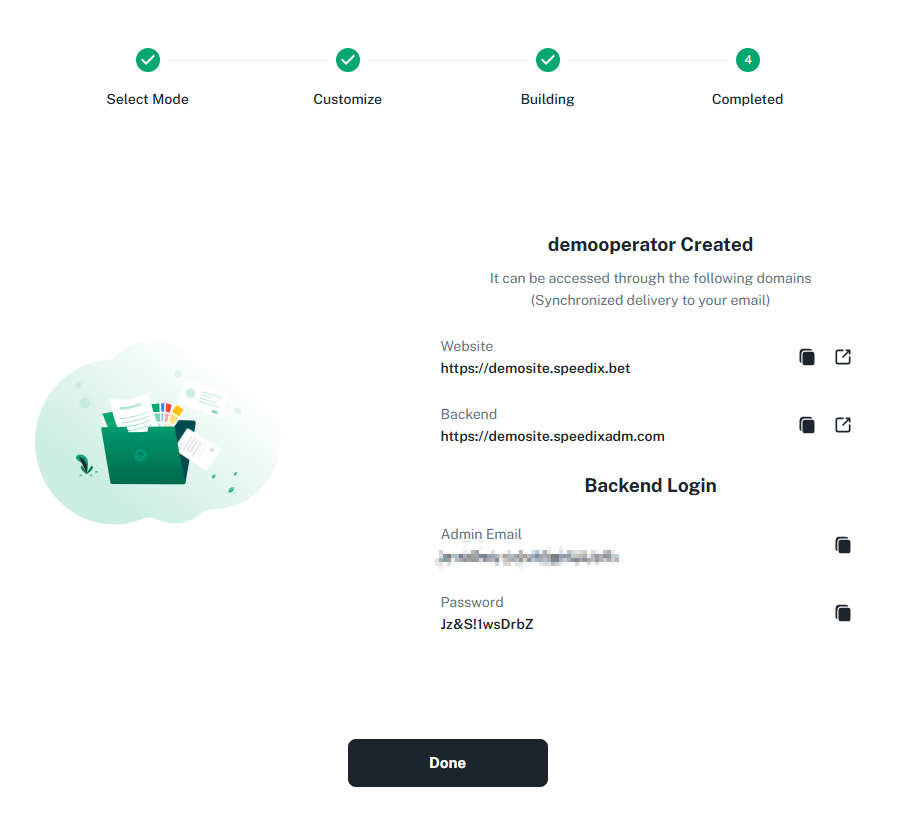
After submitting the form, the system will display the **Operator details** you just created and send the same information to your registered email.

<figure><img src="https://1949175-files.gitbook.io/~/files/v0/b/gitbook-x-prod.appspot.com/o/spaces%2F6oFF3WfAuzvevpSXOx3m%2Fuploads%2FSBOrzofHOJUIO8HFmtF3%2Funknown.png?alt=media&amp;token=fab4ff5e-db7d-4cd7-bd1c-7716ebd3134b" alt=""><figcaption></figcaption></figure>

***

#### 8. Manage Your Operators

You can view and manage all created Operators from your **Company Back-Office Dashboard**.

***

#### 🎉 Congratulations!

You have successfully set up your Company and created your first Operator.\
Your **dedicated website** is now live and ready for business.